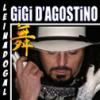
Geschrieben am 8. Juni 2006vor 20 Jr. tracklist cd1: 01. a marked preference for hardtechno02. bamboocha 03. blow up!04. take my advice05. the fight is over06. to interline07. you must never forget that+ quicktime movie nature onetracklist cd2:01. dj rush – something for my brother (intro) 02. felix kröcher – travelpussy 03. unknown forces – let me 04. robert natus – french kiss 05. jason little – unexxxisting 06. boris s. & miss jk – treat 07. matt m. maddox – white tool 08. spark taberner vs. oliver cloth – situation critical 09. boris s. & felix kröcher – brother ep (a1)10. felix kröcher – acid deposition11. torsten kanzler & sven wittekind – wie bafög12. kanzler vs. kvitta – wild west13. robert natus – siw abteilung14. killswitch & reset – freddys revenge15. jason little – stone egg16. jli project – jetzt sind wir daKlasse CD, Album + Mix-CD, zudem ein nettes, kleines Booklet und Sticker. Empfehlenswert für alle Hardtechno-Fans.
Geschrieben am 10. Juni 2006vor 20 Jr. Autor Also ich muss sagen, die CD, also beide, das Album und die Mix-CD kann man so weghören. Keine Skips. Habs jetzt in 3 Tagen schon etliche male gehört. Klasse Veröffentlichung





Erstelle ein Benutzerkonto oder melde Dich an, um zu kommentieren